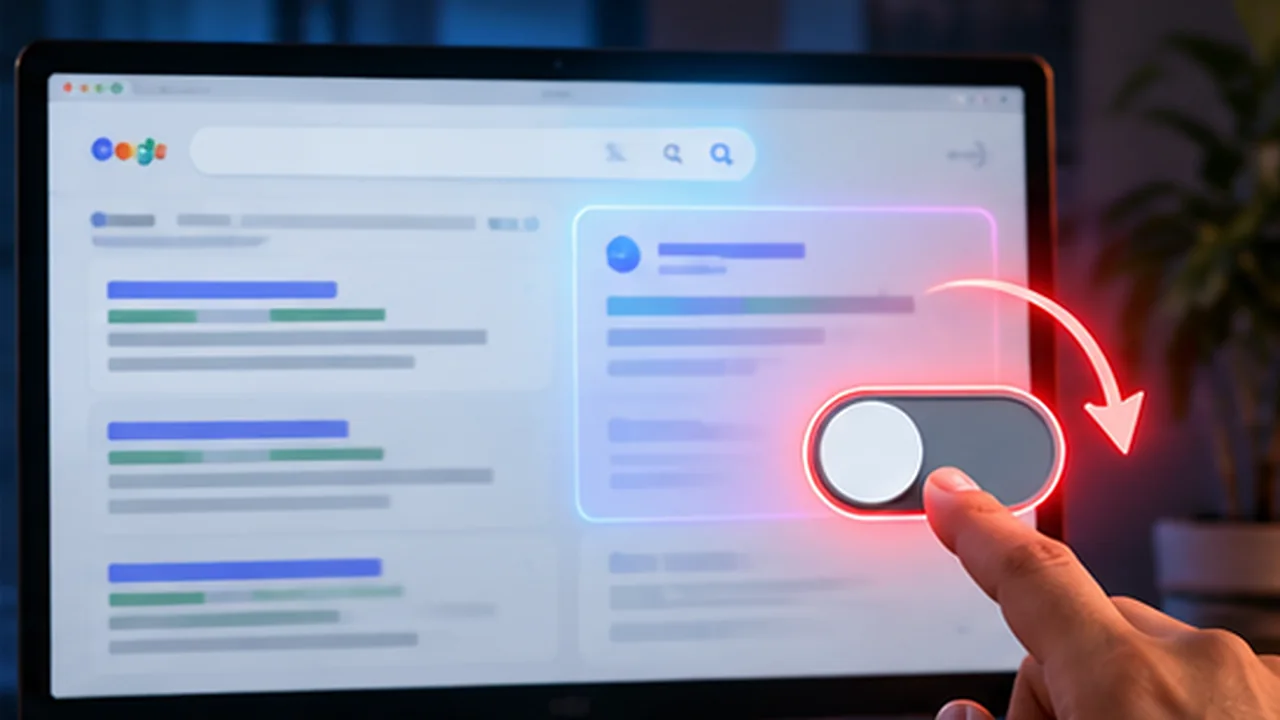
In short
Many people want plain blue-link results without the AI summary on top, but Google offers no setting for it. Guides online mix reliable methods with outdated ones, and the workarounds can stop working without warning.
Use the Web filter for a single search, or set a custom default search engine with the udm=14 parameter for every search. Both are workarounds, not official features, so they can change, and this post explains what to check when one stops working. Site owners control how their own pages appear in AI features through the standard snippet and indexing controls.
Google has no official setting to turn off AI Overviews. What you can do is switch to a results view that does not include them: the Web filter for one search, or a custom default search engine with the udm=14 parameter for every search. Both are workarounds, so they can stop working without notice.
This post was checked in October 2026. Google changes search often, so if a method fails for you, that is the likely reason.
What these methods actually do#
The thing to understand is what these methods actually do. None of them changes a setting for AI Overviews. They send you to a different kind of results page, the Web view, that is built from the plain list of links. AI Overviews can still exist on the standard page, and you simply do not see that page.
That is why guides that promise a hidden toggle in your account tend to go out of date. If a method needs a change inside your Google account, treat it with suspicion and check its date.
Method 1: the Web filter (one search at a time)#
- Search on Google as normal.
- Under the search box, find the row of filters (All, Images, Videos and so on).
- Click Web. If you do not see it, open More first.
You now get the plain list of links. It has no AI summary, but it also means no other rich blocks. The catch is that you must click it each time.
This is the safest method because it is a visible part of Google's own interface. If it disappears from your view, there is nothing to repair: just use one of the other methods.
Method 2: add &udm=14 to the URL#
The Web filter works because of a parameter in the address bar called udm=14. If you add &udm=14 to the end of any Google results URL and press Enter, the page reloads as web-only results.
Google does not document this as a feature. It is widely used, but unsupported, which is why it could break later.
A few practical details. The parameter goes after a question mark and the other parameters, joined with an ampersand. If you have only typed a search and the address bar shows a long URL, click at the very end of it and add the text. If the page does not change, check that you did not type a stray space or letter.
Method 3: make it your default search engine (every search)#
This is the most durable method on desktop, because every search from the address bar uses it automatically.
- Open your browser's search engine settings. In Chrome: Settings, Search engine, Manage search engines and site search.
- Add a new search engine. Name it anything, for example "Google web".
- Set the shortcut to something short, and use this as the URL:
https://www.google.com/search?q=%s&udm=14- Make it the default.
Firefox and other browsers have a similar form, with slightly different labels. On phones, setup varies more by browser, and there is no reliable permanent method on every device.
The %s in the URL is a placeholder. The browser replaces it with whatever you type in the address bar. If your searches come up empty or show the literal characters, the placeholder was probably changed or mistyped.
What to check first when it stops working#
If a method that worked yesterday has stopped, run through this list before searching for a new fix.
- Try the Web filter by hand. Run a normal search and click Web or More then Web. If that works, the problem is with your URL or search engine entry, not with Google.
- Check the URL character by character. Look for a missing
&, a wrong letter inudm, a stray space or the wrong number. Copy the line above rather than retyping it. - Check that the custom engine is the default. In your browser settings, confirm that the entry is set as the default, not just added to the list. Some browsers also have a separate setting for the address bar and for the search box on the new tab page.
- Try a private or incognito window. This rules out an extension or a saved setting getting in the way.
- Try another browser or device. If it works elsewhere, the cause is in the browser configuration.
- Look at the language and country version of Google. Behaviour can differ by region, so test on the version you normally use.
- Assume Google changed something. These methods are unofficial. If everything above checks out, look for a recent report rather than a guide dated before this one.
Do not install a new extension just because a result page changed. Extensions can read what you search, so install only from a developer you trust.
What does not work well#
- Adding
-aito the search. It can reduce summaries for some queries, but it also tells Google to exclude pages that contain the word "ai", which can drop good results. - Old guides. Many articles describe a setting inside Google's Search Labs or a toggle that no longer exists. If a guide tells you to flip a switch in your account, check its date.
- Extensions you do not recognise. A browser extension can read what you search. Install only from a developer you trust.
Is it worth switching off?#
That depends on how you search. The plain Web view suits people who want to compare sources and judge them themselves. A summary can be a useful starting point, but it can also be wrong or incomplete, so verify anything important against the linked pages whichever view you use.
The trade-off of the Web view is that you also lose other rich results, such as some answer boxes. If you miss them, switch back for that search.
What if you run a website?#
Readers' settings are theirs, and you cannot turn AI Overviews off for them. What you control is how your own pages can appear:
| Control | Effect |
|---|---|
nosnippet (meta robots) | Stops a text snippet from being shown for the page |
data-nosnippet (HTML attribute) | Keeps a specific part of the page out of snippets |
max-snippet | Limits how many characters can be shown |
noindex | Removes the page from Google Search entirely |
Google's documentation says these existing preview controls apply to its AI features. Check the current documentation before relying on this, since it has changed more than once.
For reference, this is how the first two look in the page source. The number in the last line is only an example of the format.
<meta name="robots" content="nosnippet">
<p>This text can appear. <span data-nosnippet>This part should not.</span></p>
<meta name="robots" content="max-snippet:50">
Use them carefully. Limiting snippets can also limit how often your pages are shown and clicked. For most small businesses, being quoted is worth more than being hidden.
If you are weighing that trade-off, read Google AI Mode and AI Overviews: what small business websites should do. And if your pages are not appearing at all yet, the cause is more likely indexing than AI, as in Crawled, currently not indexed: the cause was 173 words.
How to measure the effect as a site owner#
Before you change any preview control, record a baseline, then compare afterwards.
- In Google Search Console, open the Performance report and note clicks, impressions and click-through rate for the pages you care about over a fixed period.
- Make one change at a time, and write down the date.
- Wait long enough for the change to be processed, then compare the same length of period before and after.
- Use the URL Inspection tool to confirm that Google sees the tag you added on the live page.
- Read Google's current documentation on how AI features are reported in Search Console, because how that traffic is counted can change.
Changes in clicks have many causes, including season, ranking changes and new competitors. One before-and-after comparison is evidence, not proof, so look at more than one period before you decide.
Common mistakes#
- Using
noindexwhen you meant to limit snippets.noindexremoves the page from search results, which is far more than most people intend. - Blocking things site-wide on a hunch. Test on a few pages first and measure.
- Trusting an old guide. If the steps mention a toggle in your account, the guide is probably outdated.
- Expecting a permanent fix. The reader-side methods are unofficial and may change.
- Confusing visibility problems. Pages that do not show up at all are usually an indexing or quality issue. If Search Console reports a sitemap problem, see Search Console says the sitemap could not be fetched.
Quick summary#
For you as a searcher: use Web for one search, or set udm=14 as your default engine. For you as a site owner: you cannot switch the feature off, but you can control previews, and you should measure the effect in Search Console before changing anything.
Your next step#
If you are a searcher, set up the custom search engine once and test it with a normal query. If you are a site owner, do not change snippet settings yet: first check that your key pages are indexed and record their Search Console numbers. If you want help with that groundwork, see SEO for websites. For AI-written content and how Google treats it, read whether Google penalises AI-written content.
- seo
- ai-search
Common questions
Can I turn off AI Overviews in Google settings?
No. As of October 2026 Google has no official setting that turns AI Overviews off. Every method below is a workaround that changes which results page you see, not a switch inside your Google account.
What is the udm=14 trick?
Adding &udm=14 to a Google results URL loads the Web results view, which shows the plain list of links without the AI summary. Google does not document it as a feature, so it is unsupported and could stop working.
How do I get plain results on every search?
Add a custom search engine in your browser with the URL https://www.google.com/search?q=%s&udm=14 and set it as the default. The steps differ by browser, and mobile support is patchier than desktop.
Does adding -ai to my search remove AI Overviews?
Some people report it helps, but it also changes the query, so it can exclude pages that mention AI. It is a rough trick, not a clean solution.
As a website owner, can I opt my pages out of AI Overviews?
You can limit how your content is shown. Google's documentation says the standard preview controls, such as nosnippet, data-nosnippet and max-snippet, apply, and noindex removes the page from search entirely. Using them can reduce your visibility, so decide deliberately.
Why did the Web filter or udm=14 stop working for me?
Both are unofficial and Google changes search often, so behaviour can differ by browser, account, region or over time. Check the URL for typos, try the Web filter by hand, try a private window, and if it still fails, assume Google changed something and look for a current report rather than an old guide.
Share this
One click opens LinkedIn with a ready-written post: a hook, the short version of this guide and the link. The caption is also copied, so you can paste it if it does not appear.
Instagram has no web share link, so this gives you both pieces: copy the caption, save the card, then post it.
Keep reading
Google AI Mode and AI Overviews: What Small Business Websites Should Do
AI Overviews and AI Mode answer questions on Google's results page. What they are, whether they cost you clicks, and what a small business site should do.
Search Console said 'Couldn't fetch' on a valid sitemap. Adding ?v=2 fixed it
My sitemap returned 200 and 70 valid URLs, yet Search Console said 'Couldn't fetch'. What I checked, what URL Inspection said, and how ?v=2 fixed it.
10 Google Business Profile Optimization Tips
Ten Google Business Profile optimization tips to rank higher in local search and win more calls, from categories and description to photos and reviews.
Got this problem too?
Websites, web apps and SaaS products in React and Next.js, with the backend, payments and integrations they need to actually run a business.